
Acer 4-in-1 USB C Hub
4.2Editor score
100W power delivery
4K@60Hz output
Compact 4-in-1 design
This guide compares the top dual HDMI monitor adapters for Windows and Mac users, evaluating compatibility, video resolution support, and overall build quality.
Finding the right dual HDMI monitor adapter is essential for professionals who need expanded screen real estate. These devices allow you to connect two external displays to a single port, boosting productivity and workflow efficiency significantly.
We evaluated ten top-rated adapters based on video output capabilities, OS compatibility, and connection stability. Our analysis covers USB-C, USB-A, and DisplayPort options to help you find the best fit for your setup.
Each pick highlights key strengths and limitations to guide your decision. Note that availability and pricing can fluctuate daily, so always verify current stock and deals before finalizing your purchase online.
4.2Editor score
4.5Editor score

4.4Editor score
This side-by-side comparison highlights the critical specifications of each adapter to help you quickly identify which model matches your port requirements and performance needs.


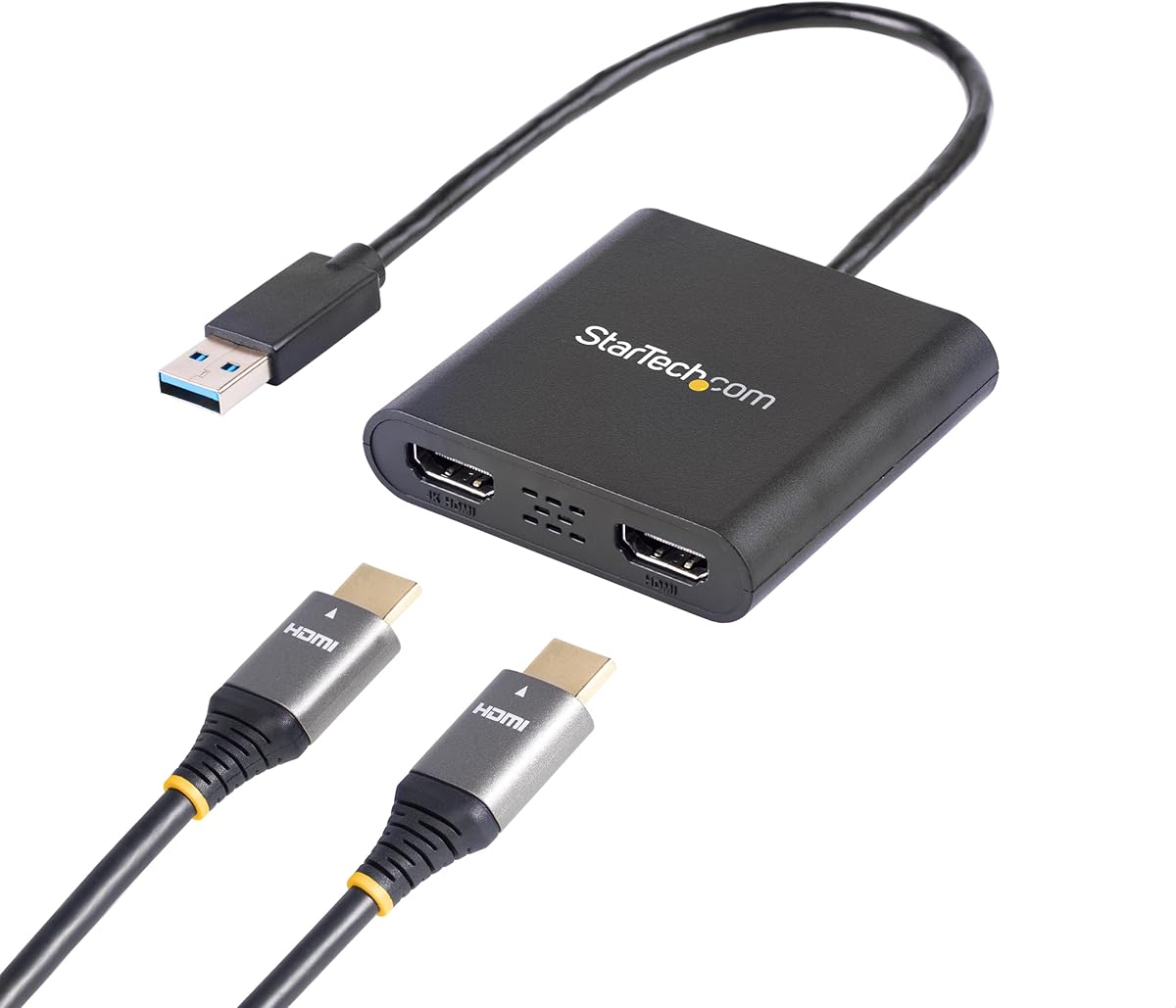
The StarTech USB-A 3.0 to Dual HDMI Adapter stands out as a reliable solution for Windows-based workstations. With a solid 4.5 rating, it offers extended desktop capabilities across two monitors with 4K support at 30Hz.
We may earn a commission when you buy through this link, at no additional cost to you.
This adapter is built specifically for IT professionals and supports Intel, AMD, and Snapdragon X platforms. It requires administrator rights for driver installation but delivers stable performance for daily productivity tasks.
While it lacks macOS compatibility and requires drivers, the 3-year warranty and lifetime technical support make it a secure investment. The 9.8-inch cable length is practical for most desk setups.
Buyers seeking a dedicated Windows dual monitor solution should choose this adapter for its proven reliability and comprehensive support structure that ensures long-term usability.
Designed exclusively for Windows, this adapter avoids cross-platform conflicts by focusing on optimized performance for Intel, AMD, and Snapdragon processors.
Backed by a 3-year warranty and 24/5 technical assistance, this product ensures you receive help whenever setup or performance issues arise during usage.
We may earn a commission when you buy through this link, at no additional cost to you.
The Acer 4-in-1 USB C Hub offers excellent value for users needing dual HDMI connectivity without breaking the bank. Its compact design supports dual 4K@60Hz displays for sharp visual performance on modern devices.
We may earn a commission when you buy through this link, at no additional cost to you.
Beyond video, this hub includes a high-speed USB-A port and a 100W power delivery port to keep your laptop charged. It requires a USB-C port with video output support for full functionality.
The 20cm cable length might be restrictive for some desk arrangements, and macOS users are limited to mirroring. However, these trade-offs are acceptable given the low cost and versatile connectivity options.
Budget-conscious professionals looking for a functional dual monitor setup on Windows or macOS devices will find this hub delivers strong performance for everyday work tasks effectively.
With dual HDMI ports supporting 4K@60Hz and high-speed USB transfer, this hub provides a complete solution for expanding laptop capabilities at an accessible price point.
The 100W PD pass-through ensures your laptop stays powered while connected to multiple displays, eliminating the need for separate charging sources during extended work sessions.
We may earn a commission when you buy through this link, at no additional cost to you.
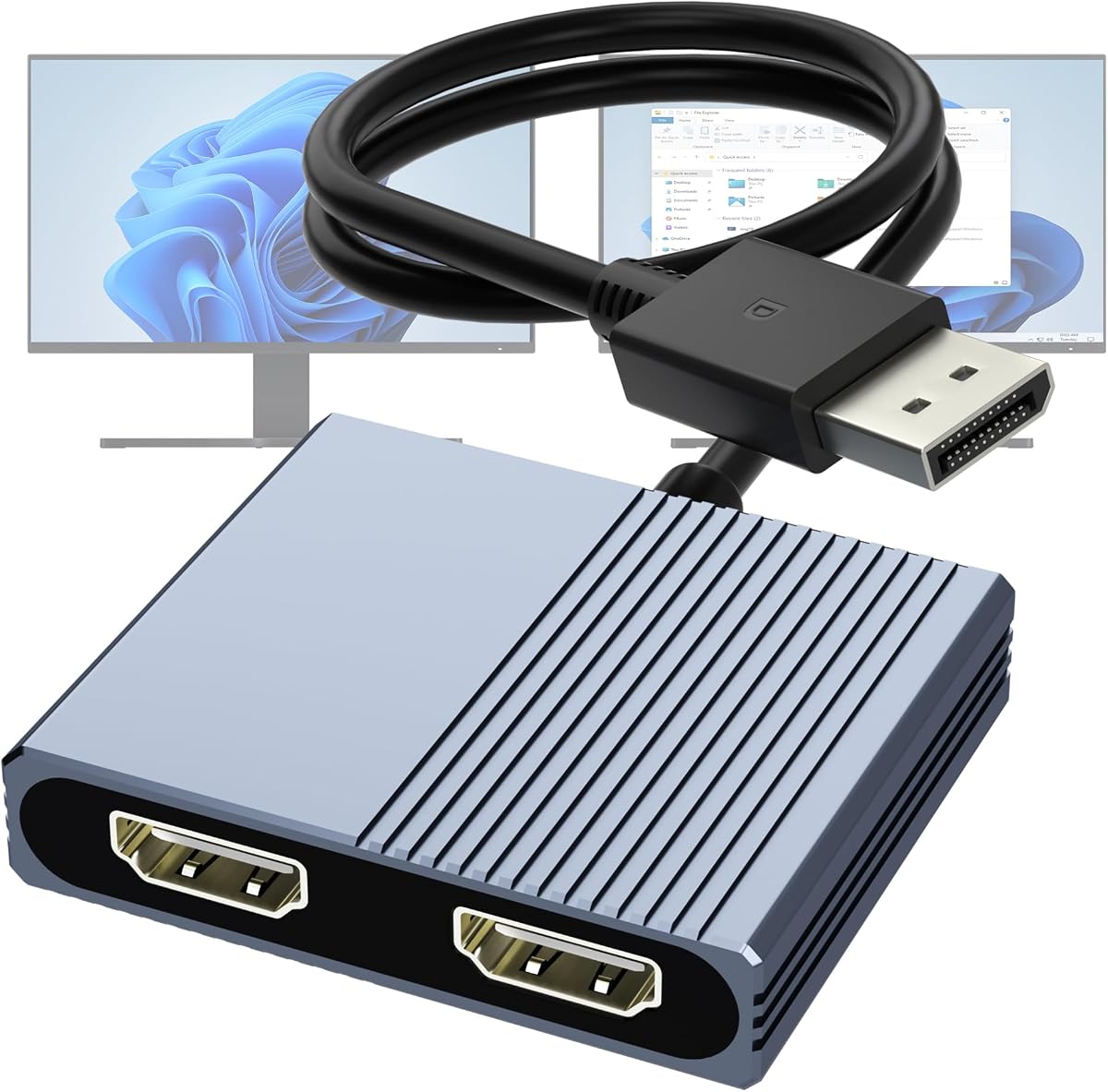
This DisplayPort to Dual HDMI Adapter delivers exceptional performance for desktop users with dedicated graphics cards. Supporting DP 1.4, it enables dual 4K@60Hz displays with extended modes without needing extra drivers.
We may earn a commission when you buy through this link, at no additional cost to you.
The hub uses MST technology to drive two different screens simultaneously, perfect for multitasking. It requires an external 5V 2A power adapter which is sold separately to stabilize the internal chipset.
While it lacks docking station compatibility, its robust aluminum housing and multi-layer shielding ensure durable signal transmission. The non-locking connector design prevents accidental damage during frequent cable changes.
Desktop users with AMD or NVIDIA graphics cards should consider this adapter for its ability to unlock high-resolution dual monitor setups with stable, high-performance video output capabilities.
Compatible with major AMD and NVIDIA graphics cards, this adapter leverages hardware capabilities to deliver smooth 4K@60Hz extended displays for demanding desktop workflows.
Supporting Multi-Stream Transport, this hub allows distinct content on each screen, maximizing productivity without forcing mirrored display modes common in simpler splitters.
We may earn a commission when you buy through this link, at no additional cost to you.
The WAVLINK HDMI Splitter Extended supports both Windows and macOS systems making it versatile for mixed environments. It offers resolutions up to 1920×1080@60Hz or 2560×1440@60Hz for clear dual displays.
We may earn a commission when you buy through this link, at no additional cost to you.
Connection flexibility is a major strength here as you can use either USB-A or USB-C ports depending on your laptop model. However, you must install drivers and it does not support Netflix or Hulu.
For web browsing and office productivity, this adapter performs well. The 12 cm cable is short but sufficient for desk setups. It supports Android devices in mirror mode which adds extra utility.
Users needing a bridge between different operating systems will appreciate this adapter. It provides reliable multi-monitor support despite driver requirements and limitations on streaming content services.
Supporting Windows, macOS, and ChromeOS ensures you can use this adapter across diverse work environments without needing separate devices for different operating systems.
While it excludes gaming and streaming due to HDCP restrictions, it excels at document editing and research tasks where stable extended displays are crucial for efficiency.
We may earn a commission when you buy through this link, at no additional cost to you.
OREI SplitExtend HDMI Splitter offers a 2-in-1 USB-A and USB-C solution for various laptops. It supports Windows, macOS, Chrome OS, and Android with 4K@30Hz output for extended dual monitor setups.
We may earn a commission when you buy through this link, at no additional cost to you.
Installation requires Silicon Motion drivers and an Intel i5 processor or higher for optimal performance. The 1-Year support warranty provides peace of mind for users deploying these adapters for office work.
Android support allows mirroring up to 1080p which adds flexibility for tablet or phone users. The package includes a USB-C to Dual HDMI Adapter and manual to guide your setup process.
Users with modern processors needing broad OS compatibility should consider this adapter. It balances price and performance well for general productivity tasks across different device ecosystems.
An Intel i5 processor or higher ensures the system can handle the video processing load required for extended displays without causing performance bottlenecks during work.
Supporting Windows, macOS, and Android ensures you can maintain consistent external display capabilities regardless of which device you use at your desk.
We may earn a commission when you buy through this link, at no additional cost to you.
The Selore USB C Docking Station offers an 8-in-1 design that transforms laptops into fully equipped workstations. It supports dual 4K@60Hz HDMI ports along with multiple USB ports and SD card readers.
We may earn a commission when you buy through this link, at no additional cost to you.
With 100W power delivery input and 85W output, it ensures your laptop stays charged while connected. The temperature control technology helps maintain stable performance even under heavy usage conditions.
Windows users benefit from extended modes but macOS users are limited to mirroring. The charger is sold separately, but the hub itself provides a robust connection framework for diverse peripherals.
Professionals seeking a premium all-in-one docking solution will find this hub offers exceptional versatility and power management. It bridges the gap between a basic adapter and a full docking station.
Beyond dual video outputs, this hub provides SD card slots and multiple USB ports to eliminate the need for additional dongles in professional environments.
The 100W PD support ensures high-performance laptops receive sufficient power during extended sessions, preventing battery drain during critical work periods.
We may earn a commission when you buy through this link, at no additional cost to you.
This 4K HDMI Splitter provides a straightforward way to mirror content across two displays. It is ideal for presentations or dual viewing where identical content is required on both screens.
We may earn a commission when you buy through this link, at no additional cost to you.
No drivers are needed for setup making it accessible for any user regardless of technical skill. It supports audio synchronization with HDMI output ensuring you get sound without extra cables.
The splitter supports 4K at 30Hz and other resolutions like 720p. While it cannot extend your desktop, its simplicity makes it perfect for events or home entertainment setups.
Users needing a simple mirror solution for a second screen should pick this splitter. It delivers reliable performance without software installation and works with various source devices.
With no driver installation required, this splitter works immediately upon connection, ensuring you can start presentations or displays without technical barriers.
Audio is synchronized automatically with the HDMI signal, allowing you to connect speakers or audio systems directly through the HDMI cable without additional wiring.
We may earn a commission when you buy through this link, at no additional cost to you.
The Selore&S‑Global USB‑C to Dual HDMI Adapter delivers 4K@60Hz on both displays for Windows users. It features a USB-A port for data transfer and a 100W PD port for charging.
We may earn a commission when you buy through this link, at no additional cost to you.
It supports MST for extended displays on Windows but mirrors on macOS. The design is compact and portable making it easy to carry for business trips or daily commutes.
While you need an external power adapter for full 100W charging, the hub itself handles the video and data transmission efficiently. Users should ensure their laptop has DP Alt Mode.
Tech-savvy users needing high-speed data and video should prefer this converter. It offers a complete connectivity solution in a small form factor for dynamic professional environments.
Windows support for Multi-Stream Transport allows true extended desktop setups where each monitor shows different content, maximizing workflow efficiency.
Designed for mobility, this adapter fits easily in laptop bags ensuring you can upgrade your display setup instantly at any remote workspace.
We may earn a commission when you buy through this link, at no additional cost to you.
This DisplayPort to Dual HDMI MST Hub features rugged aluminum alloy housing and gold-plated ports for durability. It supports DP 1.4 to deliver dual 4K@60Hz extended displays simultaneously.
We may earn a commission when you buy through this link, at no additional cost to you.
It is designed for dedicated graphics cards from NVIDIA or AMD ensuring high-performance video output. The non-locking connector design prevents physical damage during plugging and unplugging cycles.
You must ensure your computer supports DP1.4 and that HDMI cables meet HDMI 2.0 standards. Integrated graphics may not support extended modes so check specifications before purchasing.
Power users needing reliable and fast video output should choose this hub. Its premium build quality ensures longevity and consistent performance during demanding daily tasks.
Constructed with aluminum alloy and gold-plated connectors, this hub resists wear and tear ensuring stable signal transmission over years of daily usage.
Supporting DP 1.4 allows this hub to handle the bandwidth required for dual 4K@60Hz displays without signal degradation or flickering.
We may earn a commission when you buy through this link, at no additional cost to you.
The UANTIN 6-in-1 USB C Hub offers versatile connectivity with dual HDMI ports supporting 4K@60Hz. It includes three USB-A ports and a 100W PD port for comprehensive laptop expansion.
We may earn a commission when you buy through this link, at no additional cost to you.
This adapter is plug and play with no drivers required. The slim lightweight build fits easily into laptop bags making it perfect for hybrid work between office and remote setups.
Windows supports MST for dual-screen extension while macOS mirrors. The 30cm cable may be short for some setups but is sufficient for desktop environments.
Users seeking a lightweight and efficient hub should choose this model. It balances high-speed performance with portability ensuring your workspace stays organized and functional.
With no drivers needed, this hub works instantly, saving time and technical effort for users who need immediate connectivity upon arrival at work.
Its slim design ensures it adds minimal bulk to your travel gear while providing full dual monitor capability whenever you need it.
We may earn a commission when you buy through this link, at no additional cost to you.
Selecting the right dual HDMI adapter requires evaluating several technical factors to ensure compatibility and performance.
Check your laptop ports first. USB-C with DP Alt Mode works with most modern laptops while USB-A is better for older Windows machines. Ensure your system supports the adapter interface.
Verify your laptop has the correct USB-C or DisplayPort input before purchasing. This avoids buying adapters that cannot connect physically to your current devices.
Decide if you need 4K@60Hz or 4K@30Hz. Higher refresh rates offer smoother visuals but may require more bandwidth or specific hardware. Check your monitors capabilities too.
Choose an adapter that matches your monitor specs. If you use 4K screens, ensure the adapter supports 4K@60Hz to avoid reduced refresh rates.
macOS often restricts adapters to mirror mode while Windows supports extended modes. Confirm if you need two separate screens or just a mirrored one for presentations.
If you need extended displays on a Mac, you may need DisplayPort with MST or specific high-end docking stations. Check adapter specs carefully.
Adapters with 100W PD charging keep your laptop powered while in use. This is vital for workstations without nearby outlets. Ensure your laptop supports PD.
Look for a 100W power delivery port if you plan to charge your device simultaneously with video output to maintain battery life during long tasks.
Some adapters need driver installation which can be complex on managed work computers. Plug and play options are preferred for ease of use and IT compliance.
If you lack admin rights, choose a driver-free adapter. This ensures you can install it quickly without needing IT approval for software changes.
Short cables limit where you can place monitors. Check if the adapter has a long enough cable or allows external extensions for better desk flexibility.
Choose models with durable metal housings and strong ports. This protects against physical wear during frequent unplugging and ensures better heat dissipation.
Consider USB-A or SD card slots for versatility. Extra ports reduce the need for separate hubs making your setup cleaner and more efficient for daily tasks.
Prioritize hubs with extra USB ports if you frequently connect peripherals. This consolidates connections into one device rather than multiple dongles.
Prices vary significantly from budget-friendly hubs to premium docking stations. Set a budget but ensure it includes warranty support for long-term reliability and peace of mind.
Look for at least a one-year warranty. This protects your investment against defects and ensures you can get support if the adapter fails early.
Connect your laptop to the adapter via USB-C or USB-A. Ensure the cable is fully inserted to establish a stable data and power connection.
Attach HDMI cables to both adapter ports and connect them to your monitors. Adjust display settings in your OS to enable extended or mirror modes.
Keep the adapter cool by avoiding direct sunlight or heavy stacking. Regularly inspect ports for dust to maintain signal quality and prevent overheating issues.
MacBooks typically support mirroring on external displays. To use extended mode, you need DisplayPort MST hubs or docking stations that specifically support Apple devices.
Some adapters need drivers to work properly. Others offer plug and play functionality. Check product specs before purchase if you cannot install software easily.
4K@60Hz refreshes the screen twice as fast as 30Hz. This means smoother motion and responsiveness for video and productivity tasks.
No, laptops must have video output capable ports. Older laptops without Thunderbolt or DisplayPort alt mode may not support dual HDMI output.
Some hubs need external power to drive two 4K monitors. Others use bus power from your laptop. Verify adapter requirements for your screen setup.
Adapter latency makes them less ideal for gaming. Use direct GPU connections or high-end docking stations for smoother gaming experiences.
We reviewed ten top adapters ranging from budget hubs to premium docking stations. Each offers unique features for different workflows and budget constraints.
Prioritize compatibility and resolution support when selecting. Make sure your system meets requirements before purchasing to avoid technical issues.
Check current prices and deals regularly as offerings change. Investing in a reliable adapter now ensures long-term productivity and setup flexibility for your office.